Overview of the UWorld Medical Library
The UWorld Medical Library is a comprehensive knowledge platform for students, residents, and practicing physicians. It features peer-reviewed articles that cover evidence-based medicine and integrate with your QBank to deliver an ideal review experience for exam prep and daily practice.
- For medical students focusing on their preclinical curriculum: Connect pathophysiology with testable clinical manifestations for a more rounded view of topics you're studying.
- For medical students on their clinical rotations: Strengthen your clinical reasoning skills, refine your understanding of differential diagnoses, and find answers to clinical and management questions.
- For residents and practicing physicians: Validate your findings and refresh your knowledge on specific topics.
How to Find Articles (Search)
The Medical Library makes it easy to find additional context on topics you're studying or to validate your clinical findings during practice. To get started, select "Search Medical Library" at the top-left corner of your screen and enter your query.
We suggest searching for specific topics or keyword phrases just as you would in My Notebook. The search bar looks for your query in the title and body text of our hundreds of curated articles. If the library has content supporting your inquiry, it will be highlighted in your results, which will be sorted by relevance. Article titles will appear bolded, followed by a short snippet of the article highlighting your query.
→ Click here to see how it works on:
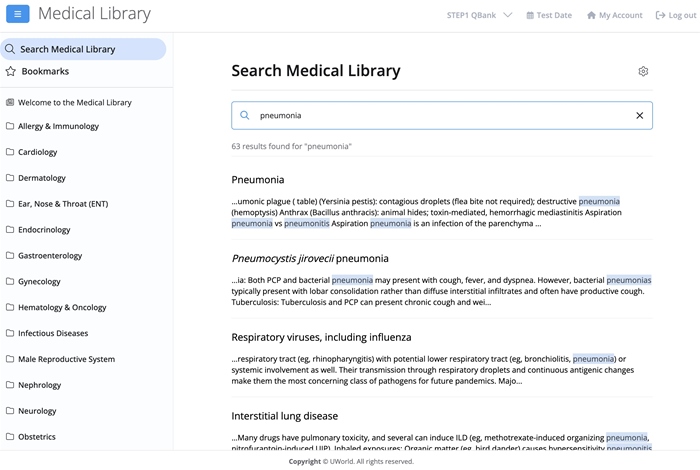
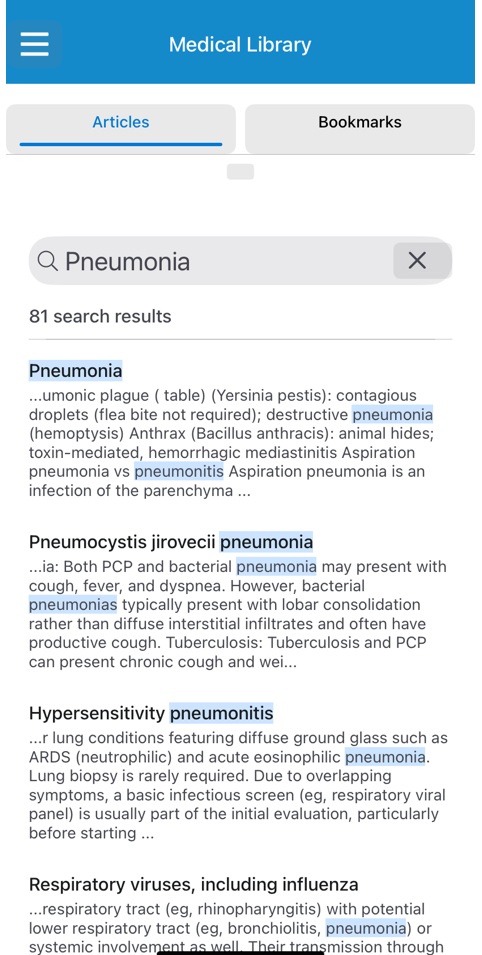
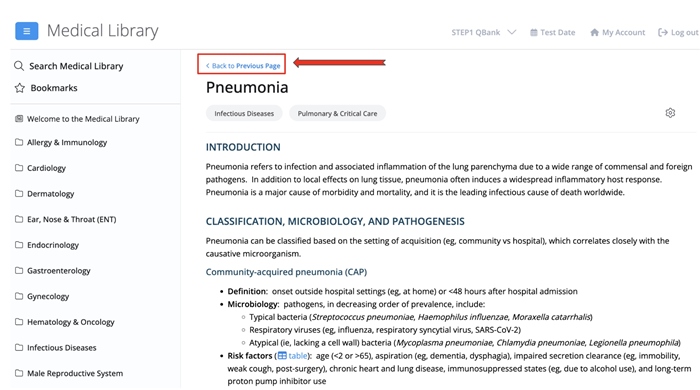
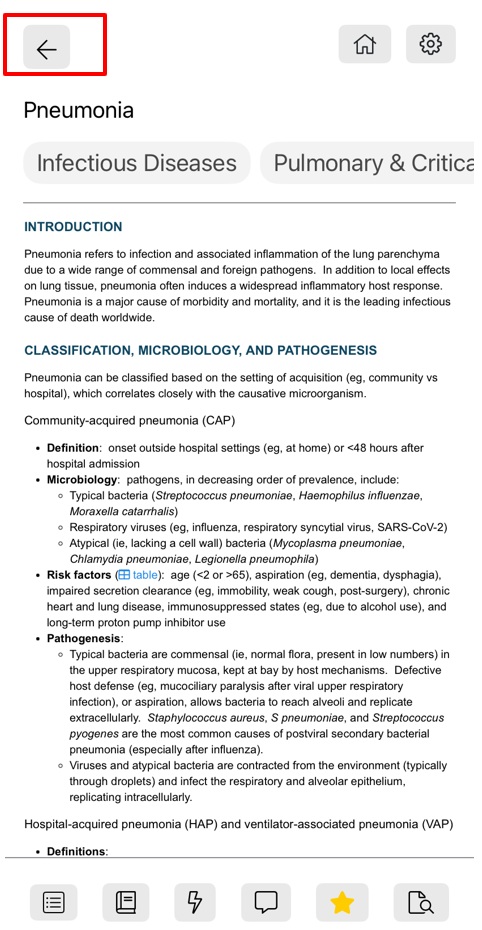
If you select an article and would like to return to your search results, click "Back to Previous Page" at the top-left corner of your screen. You can then explore other query-related articles or enter a new search.
→ Click here to see how it works on:
How to Use Bookmarks (Save)
Bookmarks are useful when you are studying a difficult topic, have a patient with needs that you are less familiar with, or want to save specific articles for future use. To make a new bookmark, select the star icon in the article tools bar.
→ Click here to see how it works on:
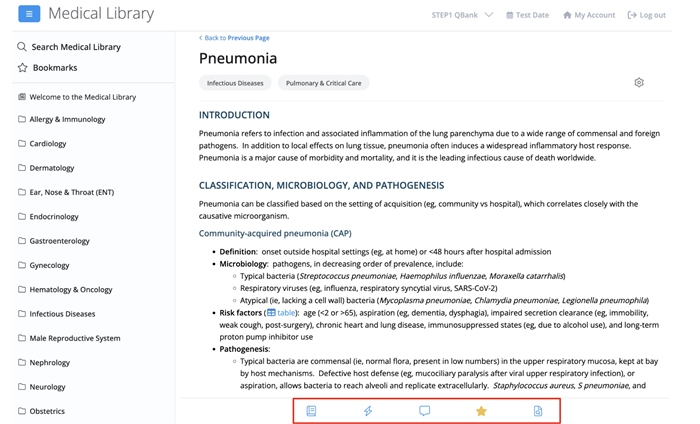
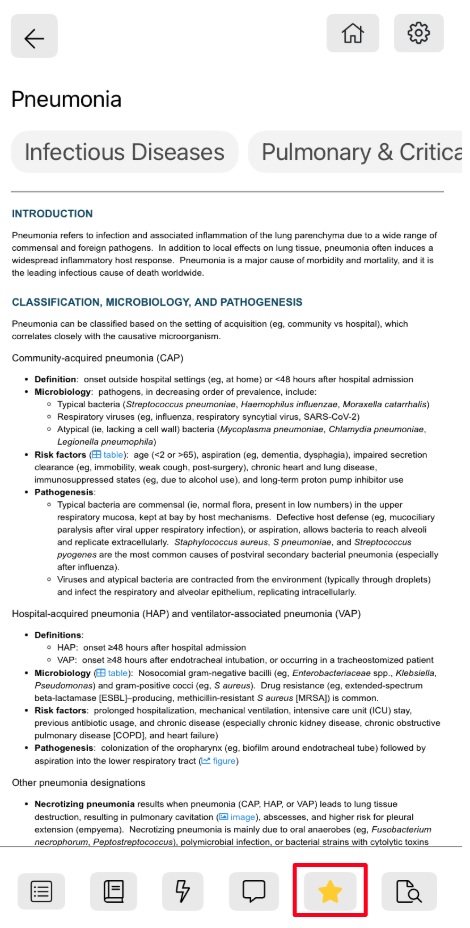
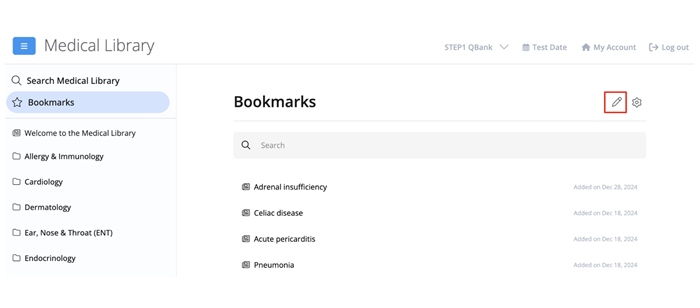
You can view your saved resources by clicking "Bookmarks" in the navigation menu on the left side of your screen. This tab also opens a search bar where you can look up specific bookmarks as needed.
→ Click here to see how it works on:
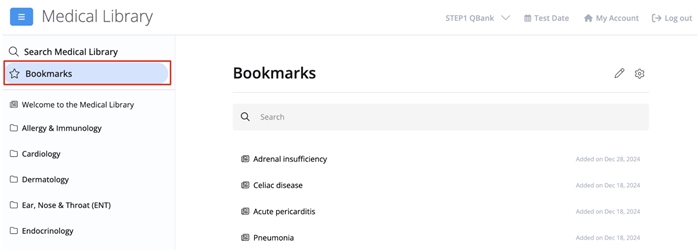
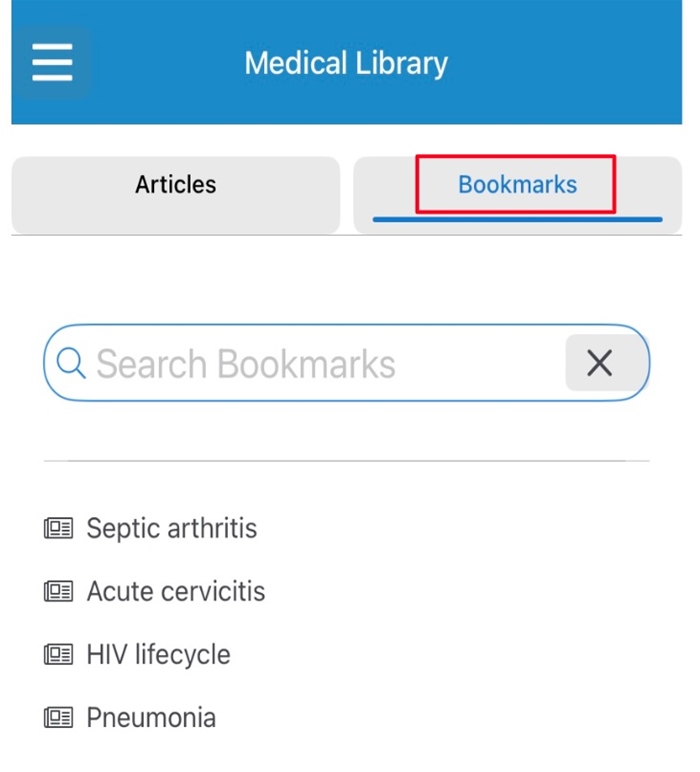
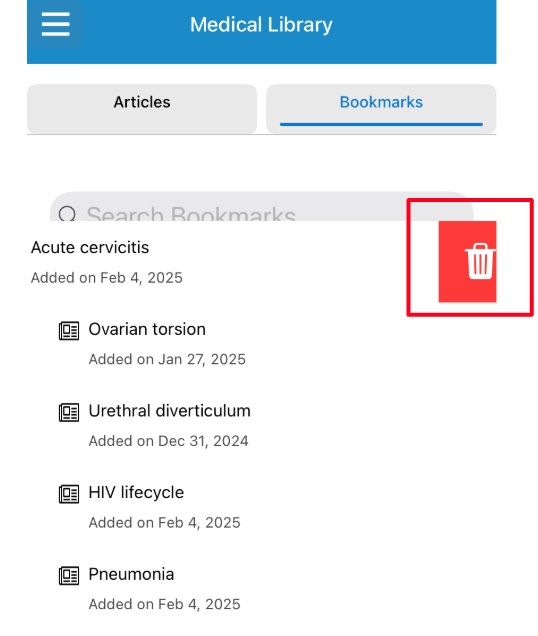
At the top-right corner of your Bookmarks screen, you'll find an edit icon that opens a multi-select option to remove bookmarks individually or in bulk.
→ Click here to see how it works on:
How to Use Article Tools (Customize)
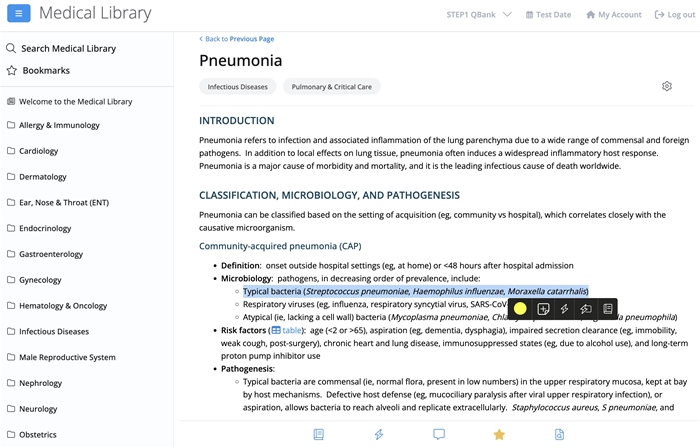
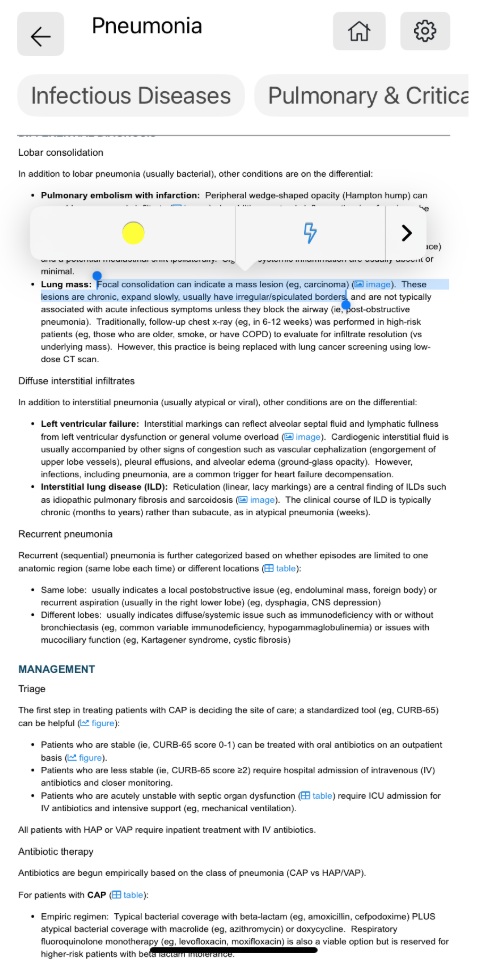
The Medical Library integrates your QBank tools to help you add clinical context to your flashcards and notes, and to further optimize your review sessions. You can access them by highlighting content or using the article tools bar at the bottom of your screen.
When you select content, a pop-up menu that has similar functionality to the menu in your answer explanations will appear. You can highlight text, create a new flashcard, edit an existing flashcard, or transfer the content into My Notebook.
→ Click here to see how it works on:
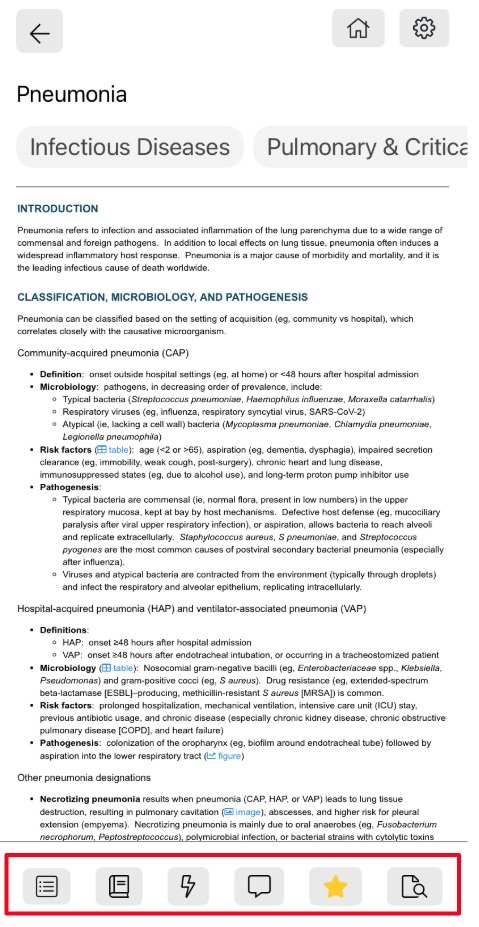
Another menu, the article tools bar, is available at the bottom of each article. This menu allows you to transfer content into My Notebook, create new flashcards, submit targeted feedback to our physician authors, bookmark the article, and search for specific terms within the article.
→ Click here to see how it works on:
Your Essential Online Medical Library
The Medical Library transforms your QBank into an all-in-one resource for clinical content mastery by expanding on the topics you need to know. Get fast, reliable answers to your clinical questions while studying, preparing for exams, or managing patients.